
Tax season places intense scrutiny on a company’s general ledger. When books are disorganized—riddled with uncleared bank transactions, negative inventory balances, lingering accounts receivable, or orphaned journal entries—tax preparers face delays, tax return filing deadlines are missed, and businesses risk triggering IRS and state audits.

A proper QuickBooks Tax Season Cleanup transforms raw transactional records into an accurate, verifiable, audit-proof set of financial statements. Whether using QuickBooks Online (QBO) or QuickBooks Desktop (QBD), conducting a methodical year-end review protects your deductions, prevents double-counted income, and ensures smooth tax compliance.
Written from the perspective of QuickBooks ProAdvisors and senior corporate controllers, this master guide delivers an actionable cleanup framework, real-world case scenarios, critical data-safety protocols, and solutions for common accounting software errors that emerge during year-end closing.
The Core Objectives of a Tax Season Cleanup
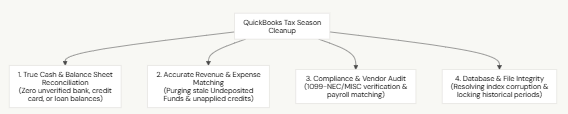
A successful tax season cleanup delivers four tangible outcomes for business owners and tax preparers:
10-Step Master Cleanup Checklist for Tax Season
Follow this sequential workflow to clean your general ledger systematically from top to bottom.

Step 1: Clear the Banking Feed Queue and Perform Complete Reconciliations
Never begin year-end adjustments while transactions remain unreviewed in bank feeds:
- Clear the Banking Queue: In QuickBooks Online (Transactions > Bank transactions) or QuickBooks Desktop (Banking > Bank Feeds Center), review all pending items. Match deposits against outstanding invoices and expenses against existing bills.
- Reconcile Every Operating Account: Open Banking > Reconcile. Do not stop at the primary checking account—reconcile every bank account, savings account, corporate credit card, merchant processing clearing account (e.g., Stripe, Square, PayPal), and line of credit through the final statement date of the tax year (typically December 31).
- Target a $0.00 Difference: Never force a reconciliation by accepting an auto-generated “Reconciliation Discrepancy” entry. These adjustment entries are red flags for tax auditors.
Step 2: Empty the “Undeposited Funds” (Payments to Deposit) Clearing Account
The Undeposited Funds account (labeled Payments to deposit in QBO) holds customer payments waiting to be grouped into bank deposits. Neglecting this account is the single most common cause of duplicated income on tax returns.
- Run a Balance Sheet as of the tax year-end.
- If Undeposited Funds show a positive balance, click the balance to open the register.
- Open Banking > Make Deposits (Desktop) or + New > Bank Deposit (Online).
- Identify stale or orphaned payments:
- If a payment listed in the deposit window already appears in a bank feed that was categorized separately as income, the income was counted twice.
- Delete or resolve the duplicate entry, or group the customer payment into the deposit that reflects the actual bank statement credit.
- Goal: The Undeposited Funds balance should equal only physical checks or cash in hand that have not yet arrived at the bank on the final day of the year.
Step 3: Audit Accounts Receivable (A/R) Aging and Write Off Bad Debt
Carrying uncollectible customer invoices inflates revenue under accrual-basis accounting, causing businesses to pay income taxes on cash they will never collect.
- Run an A/R Aging Detail Report filtered for the tax year-end.
- Review balances older than 90 to 120 days.
- Consult management to identify bankrupt customers, abandoned balances, or disputed billings.
- For legitimate bad debts, write off the balances properly:
- Create a Credit Memo coded to a dedicated Bad Debt Expense account.
- Apply the Credit Memo against the open invoice via Receive Payments to close the sub-ledger balance without altering historical revenue lines.
- Resolve unapplied customer payments and credits to ensure sub-ledgers align with the general ledger.
Step 4: Audit Accounts Payable (A/P) and Void Stale Checks
Unresolved vendor bills and uncleared payments distort cash and liability balances:
- Run an A/P Aging Detail Report as of the year-end date.
- Review old vendor bills. If a bill was paid outside QuickBooks (e.g., via owner credit card) or represents a duplicate entry, void or delete the duplicate bill to prevent overstated liabilities.
- Review your Previous Bank Reconciliation Reports for stale, uncleared checks:
- Checks outstanding for more than 180 days should be investigated.
- If a check was reissued or lost, void the original check in the current open period (or issue a reversing journal entry) to prevent altering prior-year closed ledgers, and comply with state unclaimed property (escheatment) regulations where applicable.
Step 5: Audit Form 1099 Vendor Compliance
IRS penalties for late or incorrect Form 1099 filings can accumulate quickly. Review contractor data before the January 31 distribution deadline:
Requirement | Audit Action |
W-9 Verification | Confirm you have a signed Form W-9 on file with a valid Taxpayer Identification Number (TIN or SSN) for every contractor paid $600 or more. |
Vendor Mapping | Go to Expenses > Vendors (or Vendors > 1099 Center). Check the box: “Track payments for 1099.” |
Payment Thresholds | Confirm that payments made via credit card, PayPal, or third-party networks are excluded from 1099-NEC (the merchant processor reports these on Form 1099-K). |
Account Mapping | Verify in your 1099 Wizard that all applicable expense accounts (e.g., Subcontractor Labor, Professional Fees, Rent) are mapped to Box 1 of Form 1099-NEC or Box 1 of Form 1099-MISC. |
Step 6: Verify Fixed Assets, Depreciation, and Loans
- Fixed Asset Purchases: Review the Ask My Accountant or uncategorized expense registers for equipment, vehicles, or software purchases exceeding your company’s capitalization threshold (e.g., the IRS de minimis safe harbor limit, typically $2,500 per invoice). Reclassify qualified capital purchases to Fixed Asset balance sheet accounts so your CPA can calculate Section 179 or bonus depreciation.
- Loan Amortization Balances: Compare every loan, vehicle note, or mortgage balance on your Balance Sheet against the year-end statements issued by lenders. Split payments between principal reduction (Balance Sheet liability) and interest expense (Income Statement).
Step 7: Clear “Uncategorized” and Suspense Holding Accounts
Tax authorities look closely at generic placeholder accounts:
- Uncategorized Income: Must be reclassified to specific revenue accounts to avoid tax classification audits.
- Uncategorized Expense: Must be assigned to verified operational expense categories to secure tax deductions.
- Ask My Accountant: All entries flagged during the year must be resolved before handing the file to the tax preparer.
- Owner’s Draw vs. Shareholder Distributions: Confirm that personal draws, partner distributions, and owner contributions are properly separated from business operating expenses.
Step 8: Reconcile Payroll Ledgers Against Form 941 and W-2s
Discrepancies between your general ledger payroll expenses and tax returns trigger payroll tax audits:
- Generate a Payroll Summary Report for the entire calendar year.
- Compare total gross wages, Medicare wages, and Social Security wages against the totals of the four quarterly Forms 941 filed with the IRS.
- Compare filed reports against the total amounts reported on box 1 of Form W-3 / W-2s.
- Confirm that Payroll Liabilities accounts on your Balance Sheet equal only taxes collected in the final pay period that are scheduled for deposit in January. A large lingering balance indicates unrecorded payroll tax payments or double-recorded payroll tax liabilities.
Step 9: Run Data Verification and Database Maintenance (QuickBooks Desktop)
Before closing your accounting year, ensure your database contains no structural indexing corruption:
- In QuickBooks Desktop, go to File > Utilities > Verify Data.
- If the utility reports “Your data has lost integrity,” run File > Utilities > Rebuild Data immediately.
- Save a fresh local backup (.QBB) when prompted.
- Inspect the QBWin.log file to verify that internal B-tree indexing errors, orphaned transactions, and list table pointers were successfully rebuilt.
Step 10: Set a Closing Date and Administrative Password
Once your year-end numbers match your CPA’s audited figures, lock the ledger to prevent accidental changes:
- In QuickBooks Online: Go to Gear Icon > Account and Settings > Advanced > Accounting. Toggle on Close the books, enter the tax year closing date, and set a strict password requirement.
- In QuickBooks Desktop: Go to Company > Set Closing Date. Click Set Date/Password, enter the closing date, and set a strong administrative password.
Why This Matters:
Locking the file prevents staff from accidentally editing, voiding, or dating
a new transaction into a closed tax period, which would cause prior-year
retained earnings to fall out of balance with filed tax returns.
Real-World Case Scenario: The Costly $140,000 Ghost Asset
The Background: A wholesale food distributor entered tax season confident that their books were balanced. Their internal bookkeeper had categorized bank feeds every week.
The Breakdown: When the CPA began preparing the corporate tax return (Form 1120-S), the Balance Sheet revealed:
- An Undeposited Funds balance of $142,500 dating back 18 months.
- A Reconciliation Discrepancy line item of -$18,400.
- Total revenue showed $2.14M, but bank statements reflected total deposits of only $2.00M.
The Problem: The bookkeeper had accepted incoming client payments in QuickBooks, but when the deposits cleared through the bank feed, the bookkeeper clicked “Add” as sales revenue rather than “Match” against the existing payments. Consequently, $142,500 in revenue was counted twice, artificially inflating the company’s taxable net income and creating an unnecessary $35,000 corporate tax exposure.
The Fix: Using the ProAdvisor cleanup workflow, the team audited the payment registers, matched the orphaned payments with their corresponding bank deposits, and cleared out the ghost transactions. The company’s tax return was corrected before filing, protecting the owners from paying taxes on non-existent revenue.
When to Seek Professional Assistance
While standard reconciliations can be completed internally, certain complex accounting and database problems require specialist intervention:
- Retained Earnings Discrepancies: Opening Retained Earnings on the first day of the year does not match the prior year’s ending balance, indicating that prior-year closed transactions were modified.
- Out-of-Balance Balance Sheet (Accrual Basis): Total Assets do not equal Total Liabilities and Equity when viewed in Accrual mode (a clear sign of internal database corruption in QuickBooks Desktop).
- Negative Inventory Balances: Inventory assets show negative valuation or wild fluctuations in Cost of Goods Sold (COGS) due to sales being entered prior to receiving purchase orders.
- Persistent Database Errors: Attempts to run rebuild routines trigger -6000 series errors, unrecoverable crashes, or damaged transaction log (.TLG) expansions.
Contact the Data Service Team
When your tax deadlines are approaching and automated tools cannot resolve database damage, ledger imbalances, or severe reconciliation conflicts, contact specialists:
- Support Unit: Data Service Team
- Direct Toll-Free Line: +1-(888)-718-7888
The Data Service Team provides secure database reconstructions, balance sheet reconciliation repairs, historical ledger correction, and comprehensive year-end cleanup support for QuickBooks Online and Desktop systems.
ProAdvisor Year-End Best Practices
- Retain Permanent Archive Copies: Generate a standalone, secure .QBB archive of your file labeled Company_TaxYear_FINAL_CLOSED.QBB and store it in an encrypted offsite archive.
- Export Key Financial Reports: Export your final Balance Sheet, Profit & Loss (standard and detail), Trial Balance, and General Ledger to PDF and Excel formats. Keep these alongside your filed tax returns.
- Never Reopen a Closed Period Without CPA Approval: If an invoice or bill from a closed period must be altered, enter the adjustment in the current, open tax year using an adjusting journal entry to keep your filed tax returns intact.
- Use Integrations Only: Ensure any third-party app (CRM, eCommerce, point-of-sale) connects via official Intuit APIs to prevent broken transactional links in your sales tax and revenue sub-ledgers.
Frequently Asked Questions (FAQs)
What is the difference between cash-basis and accrual-basis cleanup?
- Under cash-basis accounting, income and expenses are recognized only when money changes hands, meaning Accounts Receivable and Accounts Payable are excluded from tax calculations. Under accrual-basis accounting, income is recognized when earned and expenses when incurred, making the thorough audit of A/R aging, A/P aging, and accrued liabilities critical during tax cleanup.
Why does my Balance Sheet show a “Reconciliation Discrepancy” account?
- A Reconciliation Discrepancy account appears when someone forces a bank or credit card reconciliation without resolving the difference between the bank statement ending balance and the QuickBooks register. This account represents unverified transactions and should always be re-audited and cleared to $0.00 before tax filing.
Can a tax season cleanup fix my inventory valuation issues?
- Yes. A year-end cleanup includes running physical inventory counts, comparing them against the Inventory Valuation Summary report in QuickBooks, and entering inventory adjustment entries to account for shrinkage, obsolescence, or damaged goods.
How long does a full QuickBooks Tax Season Cleanup take?
- Depending on transaction volume, file size, and the state of your books, a standard cleanup for a small-to-midsize business typically takes between 8 and 25 hours of focused ProAdvisor auditing.
Conclusion & Action Plan
A comprehensive QuickBooks Tax Season Cleanup ensures that your tax returns are based on accurate data, deductions are protected, and common pitfalls like duplicate income or unrecorded liabilities are eliminated. By clearing bank feeds, reconciling accounts to $0.00 differences, emptying Undeposited Funds, auditing 1099 vendors, and locking the books with a closing password, you set your business up for a clean, audit-proof tax filing.
Always back up your accounting file before making year-end adjustments, and consult your CPA before making structural changes to historical periods.
If your books show unreconciled discrepancies, out-of-balance balance sheets, or structural database errors that automated tools cannot repair, contact the Data Service Team at +1-(888)-718-7888 for professional, secure ledger cleanup, database reconstruction, and complete QuickBooks year-end recovery support.